

The best Valorant Keybinds improve aim control, utility speed, and movement reliability in competitive matches. With over 14 million players and 4.5 million active daily, execution speed and precision matter. Valorant’s ranked format rewards players who minimize delay during weapon swaps, ability use, and micro-movement.
Default binds cause overlap and slow reactions during pressure moments. Rebuilding your keybinds around finger reach and task priority removes conflict and makes actions more precise. This guide covers optimal setups for movement, combat, and agent utility, based on what works best for high-level play.
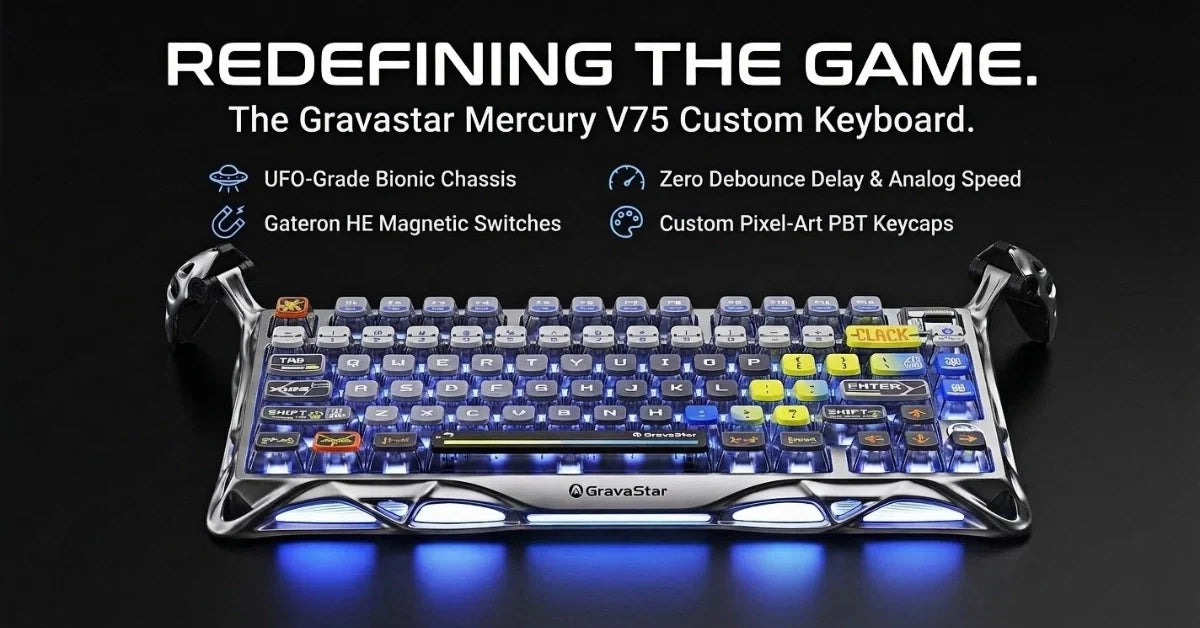
If you’re remapping controls, use a responsive keyboard that won’t limit your changes. GravaStar’s Mercury K1 Pro supports full customization and delivers fast mechanical response without ghosting or delay.
What Are Valorant Keybinds?

Valorant keybinds are control settings that assign actions like movement, aiming, ability use, and weapon swaps to specific keys on your keyboard and mouse. They determine how fast and smoothly you can respond during fights by controlling key mechanics such as jump, crouch, and interact.
The default layout includes W, A, S, D for movement, spacebar for jump, Ctrl for crouch, and number keys for weapons. These can be changed in the settings to reduce hand strain and improve execution speed.
How Do Valorant Keybinds Affect Gameplay?
Keybinds change how fast you can move, shoot, switch weapons, and use abilities in fights. If a key is out of reach, you lose control when it matters most. That split-second delay can cost you a duel or cancel a Spike plant under pressure.
When actions like crouch, jump, or dash aren’t placed near your movement or aim keys, you either miss the input or must stop moving to hit them. That pause breaks your momentum. This is why players move jump to the mouse wheel or dash to a mouse side button so your left hand stays locked on aim and movement.
Strong keybinds remove hesitation. Your reaction time drops if you’re unsure where your flash or reload is mid-round. Clean gaming setups let your hands respond without thinking, so your focus stays on the enemy, not your keyboard.
What Are the Best Valorant Keybinds to Start With?
The best Valorant keybinds to start with are: Mouse Button 4 for Ability 1, Mouse Button 5 for Ability 2, Left Ctrl for crouch, and scroll wheel down for jump. These placements clear your movement keys, improve reaction time, and reduce finger overlap during ability use and gunfights.
Side buttons shift mobility and fast-cast actions off the keyboard, freeing up Q and E for slower abilities or communication binds. The scroll wheel jump increases movement consistency during vertical fights and allows cleaner strafes. Left Ctrl for crouch avoids map, reload, and utility key conflicts common with C or Shift.
Why Should You Customize Your Valorant Keybinds?
Customizing your Valorant keybinds eliminates reaction delays caused by default layouts that overload a single hand or finger. By reassigning movement, weapon, and ability actions to separate, accessible keys, you keep your hand anchored on movement keys while reacting quickly to combat situations.
For example, assigning Jett’s dash or Raze’s satchels to mouse side buttons prevents you from lifting off aim or misfiring under pressure. This supports faster peeks, better flick control, and smoother transitions between utility and gun play.
Custom layouts also reduce long-term hand strain and help you maintain consistent performance across matches, especially when switching between agents or roles.
What Are the Best Binds for Jump, Crouch, and Walk?
The best Valorant binds for jump, crouch, and walk are Mouse Wheel Down, Left Ctrl, and Left Shift. This setup minimizes finger stretch, keeps movement and aim steady, and improves speed during peeks or dodges. Each bind stays close to the movement keys so you can react fast without lifting off WASD.
Jump
Bind to Mouse Wheel Down and optionally keep Space Bar as secondary. Mouse wheel jump allows precise bunny hops and jump peeks without moving your thumb. This setup supports fast movement tech without disrupting aim or strafe flow.
Crouch
Bind to Left Ctrl. It sits under your pinky, avoids overlap with movement keys, and supports instant crouch cancels. Avoid C unless the pinky is unused. Index and middle finger binds interfere with peeking, aiming, or utility timing. Use Hold Crouch to improve resets and cut animation delays during peeks.
Walk
Bind to Left Shift. This keeps walking under your pinky and frees your main fingers for strafing. Walk controls sound and peek discipline, so the bind must not force hand movement or slow your transition into combat.
Where Should You Bind Valorant Abilities?
The best binds for Valorant abilities place Ability 1 and 2 on Mouse Buttons 4 and 5, and Ability 3 and your Ultimate on Q and E. This setup keeps movement and aim uninterrupted while giving fast access to key agent skills.
Ability 1 And Ability 2
Bind to Mouse Button 4 and Mouse Button 5. These are used for fast utility like Jett's dash, Raze’s satchel, or Phoenix’s flash. The side buttons let you activate abilities while strafing or aiming without lifting a finger from movement keys.
Ability 3 And Ultimate
Bind to Q and E. These sit near WASD and don’t force finger repositioning. Use Q and E for slower or charged actions like Sage's wall or Sova's recon bolt.
Why Not Use C?
C is near Ctrl and often competes with crouch, map, or ping binds. Only use it if your pinky has no other role or you're not using crouch on Ctrl. Many players accidentally crouch or pull out a map mid-fight when C is overloaded.
What Are the Best Weapon Keybinds in Valorant?
The best weapon slot binds in the Valorant map, each slot to a dedicated, direct key to prevent scroll errors and missed swaps during combat. Primary and secondary weapons and knives should be placed on keys 1, 2, and 3, allowing players to switch loadouts without breaking finger placement on movement controls.
These binds keep gun transitions clean during reload cancels, utility combos, and fast flicks, especially in duels where timing gaps can cost a round.
Primary Weapon
Bind to 1. This keeps your rifle, SMG, or sniper rifle directly above WASD keys. It minimizes hand movement and makes sure you can equip your primary weapon without losing aim control. Only change this if your keyboard layout or hand size forces frequent errors.
Secondary Weapon
Bind to 2. This gives quick access to pistols when your primary is out of ammo or for pistol rounds. It sits beside your primary bind and helps with fast vertical finger movement between keys.
Knife
Bind to 3 or Mouse Button 4. Switching to the knife boosts movement speed for silent rotations or quick repositioning. A mouse side button lets you do this without lifting off movement or aim. Players who use Operators often prefer this setup for faster sprint cancels.
Spike
Bind to 4. Keep it separated from weapon keys to avoid misinputs during pressure plants. This keeps your Spike interactions consistent and isolated from combat binds. Only move it if you rarely carry Spike and need space.
Last Weapon Used
Bind to Mouse Button 5 or leave it unbound. This is useful for reload cancels or quick flick swaps between weapons. If you prefer direct slot keys, leave it unbound to avoid accidental swaps.
Inspect Weapon
Bind to F. This shifts your gun model slightly and can clear visual clutter near walls or when peeking. F is close enough for tactical use but not easily pressed by mistake during combat.
Throw Weapon
Bind to G. Used to drop your gun for trades or pickups during buy rounds. G sits near reload but is separate enough to prevent panic misfires.
Use or Pickup Weapon
Bind to E. This lets you plant, defuse, or grab items. It fits naturally beside W and supports fast interaction without breaking your movement pattern. Do not move this to the mouse unless your setup demands it.
Ultimate Ability
Bind to X. This slot is for high-impact abilities like Jett’s Blade Storm or Sova’s Hunter’s Fury. X sits below your ring finger, avoiding interference with crouch or map binds. Do not assign it to C unless your pinky has no other action.
How Do Valorant Pros Set Up Their Keybinds?
Valorant pros use keybinds that match their playstyle, agent preference, and hand comfort to reduce delays and improve muscle memory. They rely on movement keys that keep their fingers anchored near the crosshair and bind abilities to mouse side buttons to activate utility without breaking aim.
While some setups are similar, each Valorant player makes small changes based on how they approach fights and use ability keys under pressure.
The table below compares how three top pro players configure their most important keybinds:
|
Action |
ZmjjKK |
TenZ |
Aceu |
|
Walk |
L-Shift |
L-Shift |
L-Shift |
|
Crouch |
L-Ctrl |
L-Ctrl |
L-Ctrl |
|
Jump |
Space Bar / MW Down |
MW Down |
Space Bar / MW Down |
|
Use Object |
E |
E |
F |
|
Equip Primary Weapon |
1 |
1 |
1 |
|
Equip Secondary Weapon |
2 |
2 |
2 |
|
Equip Knife Weapon |
3 |
3 |
3 |
|
Equip Spike |
4 |
5 |
4 |
|
Ability 1 |
C |
C |
E |
|
Ability 2 |
Mouse Button 5 |
Mouse Button 4 |
Q |
|
Ability 3 |
V |
Mouse Button 5 |
C |
|
Ultimate Ability |
X |
F |
X |
TenZ uses mouse buttons 4 and 5 to trigger fast mobility and utility like Jett’s dash or Phoenix’s flash. This reduces the need to shift away from WASD keys, keeping both movement and aim steady.
ZmjjKK binds Ability 1 to C, but newer players may struggle with this since it competes with crouch or map controls. Aceu prefers the scroll wheel for jump, which helps with tap-strafing and movement tech while keeping aim active.
Each setup shows how the best players customize their keybind settings to match their preferred agents and fighting style. While personal preference plays a role, binds that reduce finger overlap and keep action keys within reach support faster inputs and better results during ranked or tournament play.
How Do You Change Your Valorant Keybinds?
You can change your Valorant keybinds in the in-game settings menu under the “Controls” tab. This section lets you reassign movement, combat, and communication keys by selecting a function and pressing the new key to bind. Changes apply instantly and can be tested live in the Range.
Here are the steps to change your Valorant keybinds:
- Click the settings icon in the top-right corner of the Valorant home screen.
- Open the Controls tab under “Keyboard / Mouse” in the settings menu.
- Scroll through the list of action keys (jump, crouch, walk, use object, equip primary weapon, ability keys).
- Click on the action you want to change.
- Press the new key or mouse button you want to assign (you can use number keys, mouse side buttons, or scroll wheel press).
- Repeat for any other keybinds you want to adjust, including mouse buttons 4 and 5 or the e and q keys for ability use.
- Make sure keybinds don’t conflict—avoid overlap between movement keys, utility, and communication.
- Test changes in The Range to verify movement and aim feel responsive under pressure.
- Use the Reset to Default button in the bottom left of the menu to restore default weapon binds and other settings.
- Exit the keybind settings menu when satisfied to return to gameplay.
How Do You Reset Valorant Keybinds to Default?
Open Valorant, go to the settings menu, click the “Controls” tab, and select “Reset to Default” in the bottom left corner. This will restore all Valorant keybinds to Riot Games' original layout, including movement, weapon, ability, and interface controls.
Should You Use Hold or Toggle for Valorant Inputs?
Hold is the better input method for keybindings in Valorant when it comes to crouching, walking, aiming down sights, and sniper rifle zoom. It improves timing control by releasing the action the moment you stop holding the button, which increases speed and precision during movement and flicks.
Using hold instead of toggle helps you react faster in the heat of battle. For example, being able to unscope instantly or cancel a toggle crouch can save your round. This also supports smoother movement and aim, especially when tracking or dodging.
Toggle introduces a delay since it needs a second input to deactivate. That second press often causes hesitation or misfires, especially when holding the scope button with a sniper rifle. Many pro players and top-ranked users use the toggle for sniper rifle aim only in specific cases. Still, most Valorant players stick with hold and toggle selectively, depending on their personal preference.
Should You Use Different Keybinds for Each Agent?
Yes, you should use agent-specific keybinds if your playstyle changes drastically between agents or roles. This option lets you assign ability and action keys matching each agent’s utility type, improving speed and muscle memory in fights.
Patch 10.07 supports this through the agent profile system in the keybind settings menu. You can enable agent-specific profiles from the settings icon under the Controls tab. Once turned on, Valorant creates a separate keybind configuration menu for each agent you edit.
For example, keep Ability 1 on a mouse side button for agents like Jett, where quick mobility is part of your entry timing. For agents like Sova, you can bind the same action to Q or E, depending on how you cast recon or utility from cover.
This approach keeps your inputs optimized across agent types. It prevents bind conflicts when switching from fast-aim reliant duelists to utility-heavy sentinels or initiators. It also helps maintain muscle memory across different roles without slowing your reaction speed or ability usage.
How Do You Test Your Keybinds in The Range?
Test your keybind settings in The Range by running drills that mirror live combat. Focus on jump timing, ability keys, and switch weapons actions to find input delays or hand strain that can disrupt movement and aim during fights.
Start by chaining crouch, walk, and jump while firing at bots to see if your movement keys support stable crosshair placement. Use mouse side buttons to trigger using abilities mid-strafe and check for accuracy loss or awkward timing.
Swap between primary and secondary weapons using your assigned number keys or scroll wheel, pressing to catch any lag or misfires under pressure.
Finish with a deathmatch or peek routine and review the replay for aim drift, movement stalls, or hesitation in key-to-press moments. Adjust one input at a time, retest, and refine until the layout supports consistent control and sharp FPS performance.
What Mouse Settings Should You Use with Valorant Keybinds?
The best mouse settings for Valorant keybinds create a seamless connection between your hand and the crosshair. These settings must support speed and precision during fast combat and reduce interference between aim and movement keys.
Set your DPI between 400 and 800, and your in-game sensitivity to reach an effective eDPI of 240 to 360. This range gives a balance between control and flick speed. Turn on Raw Input Buffer if your mouse supports a 1000 Hz or higher polling rate for better input registration. Disable pointer precision in Windows to keep crosshair movement consistent.
Set your sniper rifle zoom to hold, not toggle. This lets you exit scope instantly after a flick or missed shot and helps players to un-scope faster in close fights. Use the lowest lift-off distance your mouse allows to avoid drift when repositioning or tapping.
If you use the scroll wheel for jump or weapon cycling, assign secondary actions carefully. Avoid binds that interrupt crosshair control or delay shooting after a weapon swap. Every setting should reinforce your muscle memory, not compete with it.
What Keybinds Help Most in Clutch Situations?
The best Valorant keybinds for clutch situations are ones that reduce input errors, support clean movement, and keep your focus on decision-making. Assign the F key to plant or defuse so you can stay locked to your movement keys without shifting your hand. Bind crouch to Left Ctrl and walk to Left Shift, then enable toggle crouch for smoother control during slow peeks or disengagements.
Use the scroll wheel press only for advanced movement or jump inputs, and avoid using it to switch weapons, since accidental scrolls can lose a round. Unbind party push to talk if it interferes with other high-priority action keys. Assign the mouse side button to clutch mute to silence teammates instantly and improve focus under pressure.
These binds minimize distractions and support faster reactions when timing, accuracy, and mental clarity are critical to closing a 1vX round. Focused binds improve your rhythm and give you better control and customization over your clutch mechanics.
Best Valorant Keybinds | FAQ’s
What’s the fastest crouch Valorant keybind?
The fastest crouch keybind in Valorant is Left Ctrl, since it sits under the pinky and doesn’t interfere with movement or aim. C or X work for some players, but keybind choice is personal preference and how your fingers move during fights.
What's the difference between “Scope Hold” and “Scope Toggle”?
Scope Hold keeps you zoomed in only while holding the aim button, while Scope Toggle stays zoomed until you press the aim button again. Hold gives faster unscoping for flicks or dodges, while toggle can feel slower but less tiring for long-range holds.
Is the mouse wheel jump better than the spacebar in Valorant?
Mouse wheel jump offers more consistent timing for bunny hops and movement tech, especially in fights. While the spacebar works fine for basic jumps, many players prefer the mouse wheel for precision and fluid movement, though this choice depends on personal comfort and setup.

Leave a comment
This site is protected by hCaptcha and the hCaptcha Privacy Policy and Terms of Service apply.